 Fxit Community
How to use Fxit Community
Step by step, with pictures. Updated 2 November 2026.
Fxit puts your neighbourhood on one channel: safety alerts, help between neighbours, local services, groups, Chatter and news. The pictures show a made-up neighbourhood, so the names in them are examples.
Joining Fxit
Open Fxit from Google Play or the App Store and sign in: with Google on Android, with Apple on iPhone. Joining then takes three short steps.
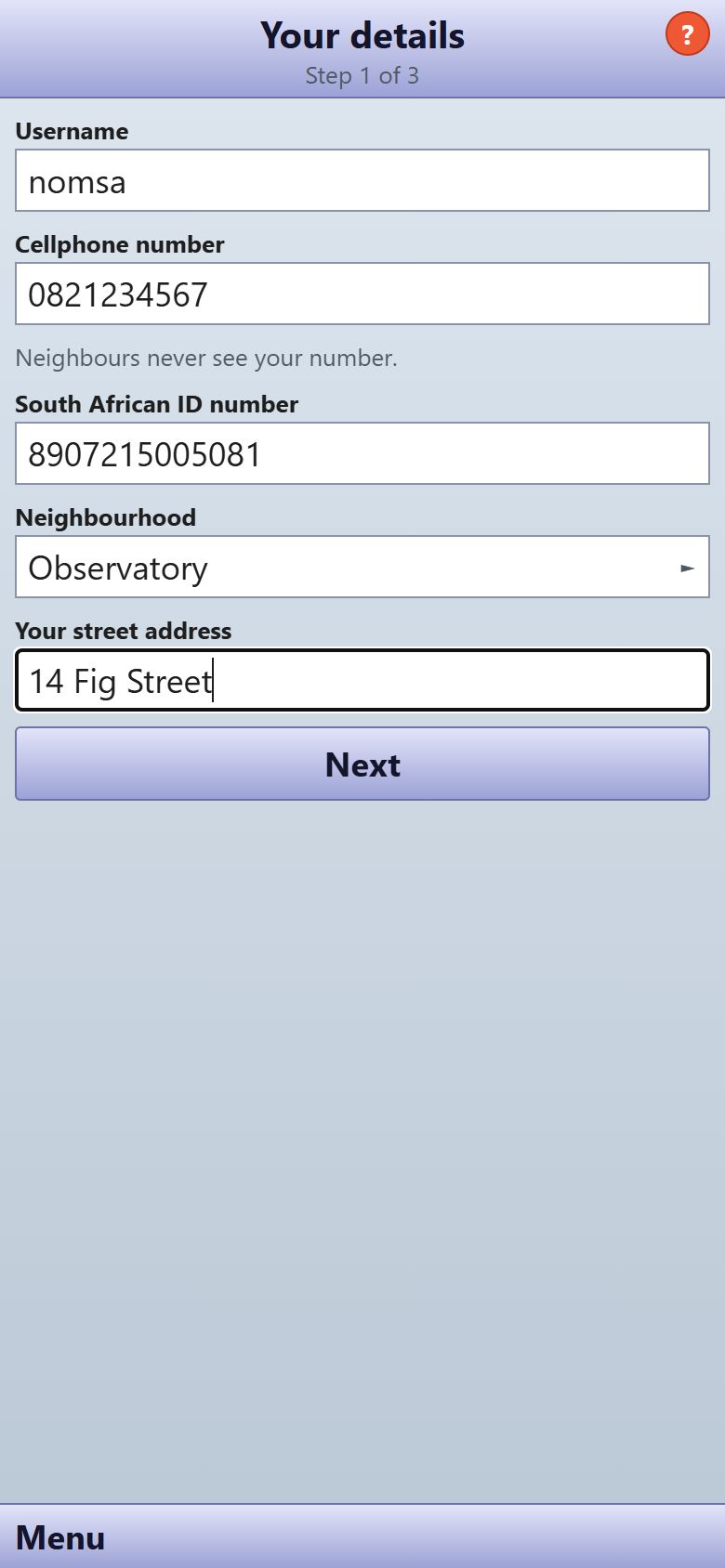
Step 1: Your details
- Choose a Username.
- Type your Cellphone number. Neighbours never see it.
- Type your South African ID number. We use it only to check you’re 18 or older, and we don’t keep it.
- Tap Neighbourhood and choose yours from the list.
- Type Your street address, then tap Next.
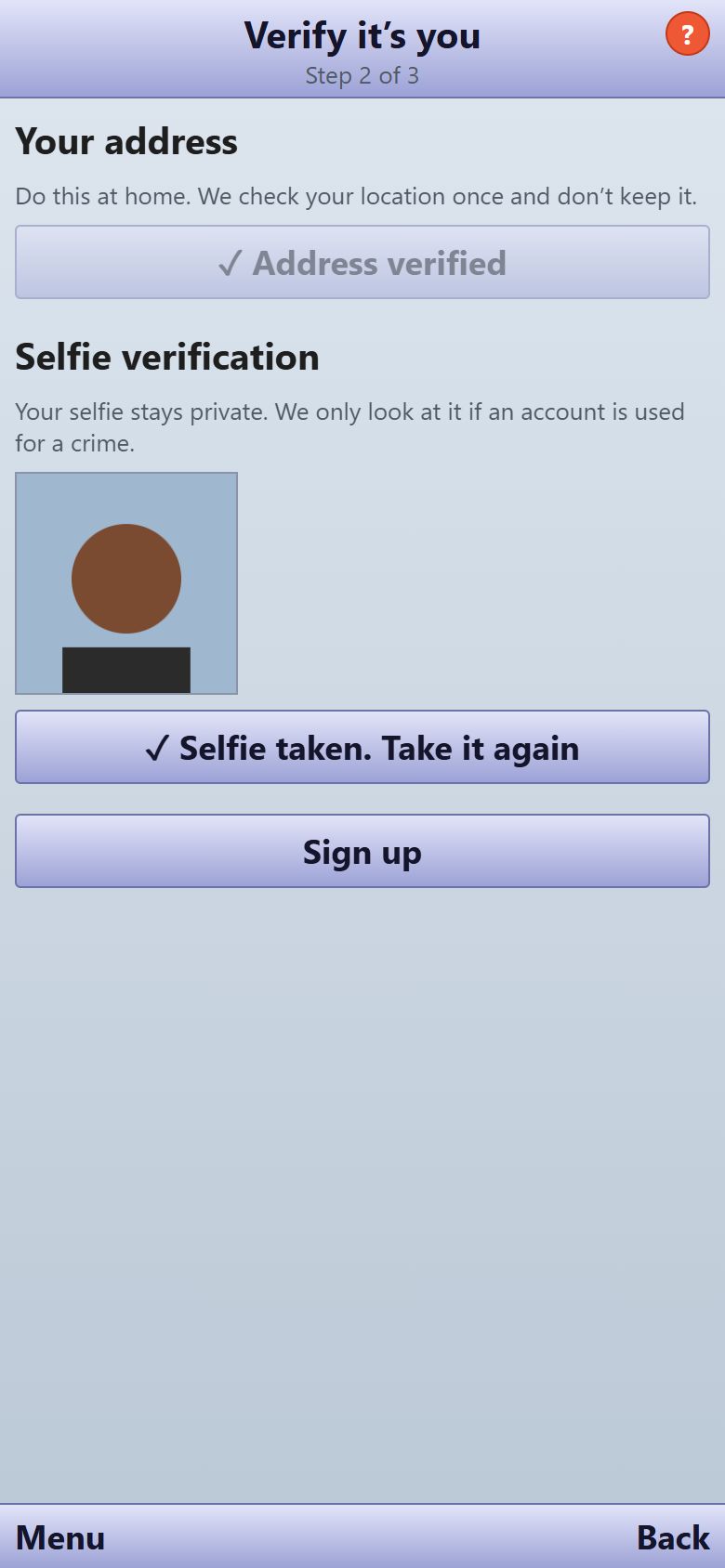
Step 2: Verify it’s you
- At home, tap Verify my address. We check your location once and don’t keep it.
- Tap Take a selfie. It stays private. We only look at it if an account is used for a crime.
- Tap Sign up.
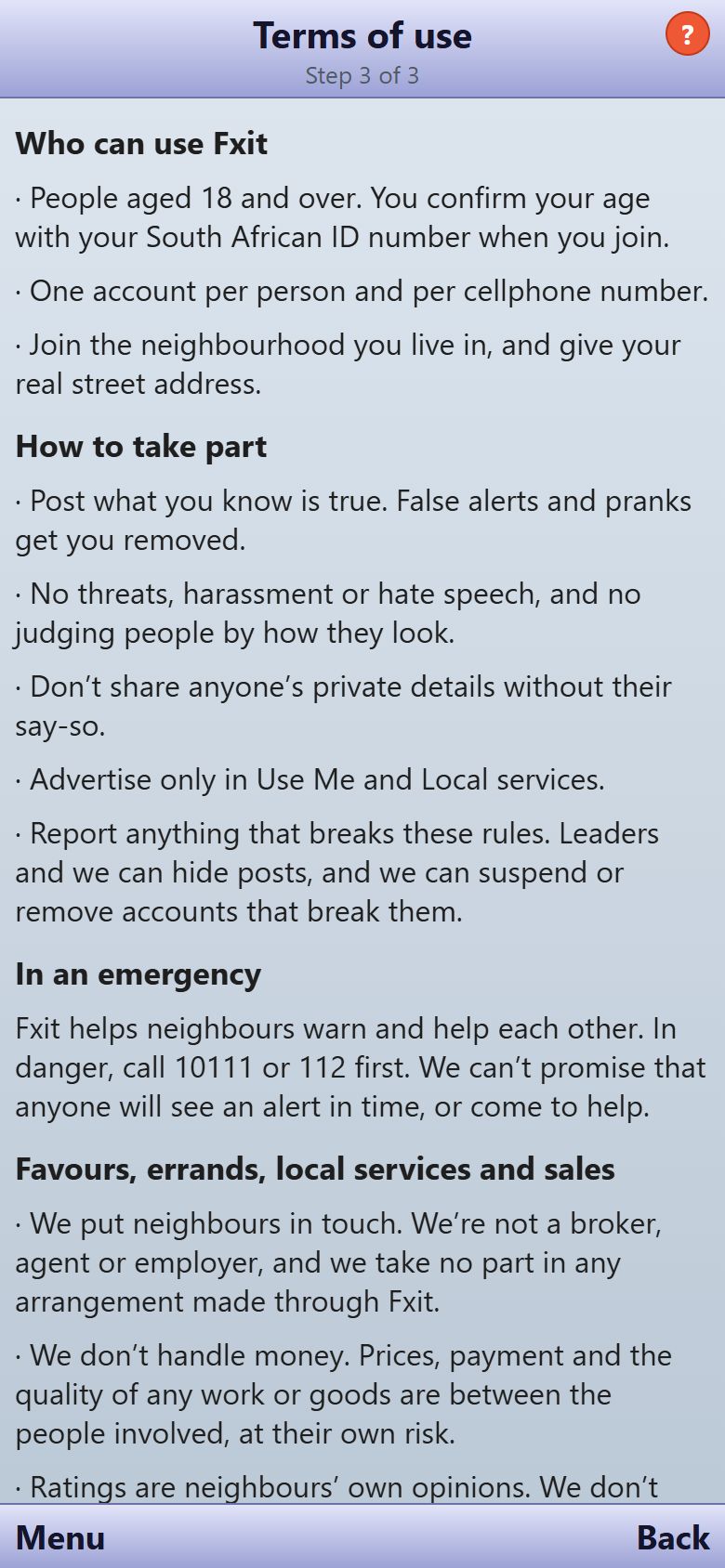
Step 3: Terms of use
- Read the terms of use.
- Tap I agree. You’re in.
Two neighbours who know you vouch for you before you can see patrols. Ask someone on your street to vouch for you from their Contacts and chats screen.
Get alerts on your phone
- On the home screen, tap Turn on alerts and allow notifications.
- On an iPhone, first add Fxit to your home screen: in Safari tap Share, then Add to Home Screen, and open Fxit from there.
- Emergencies and alerts on your street then reach you even when Fxit is closed.
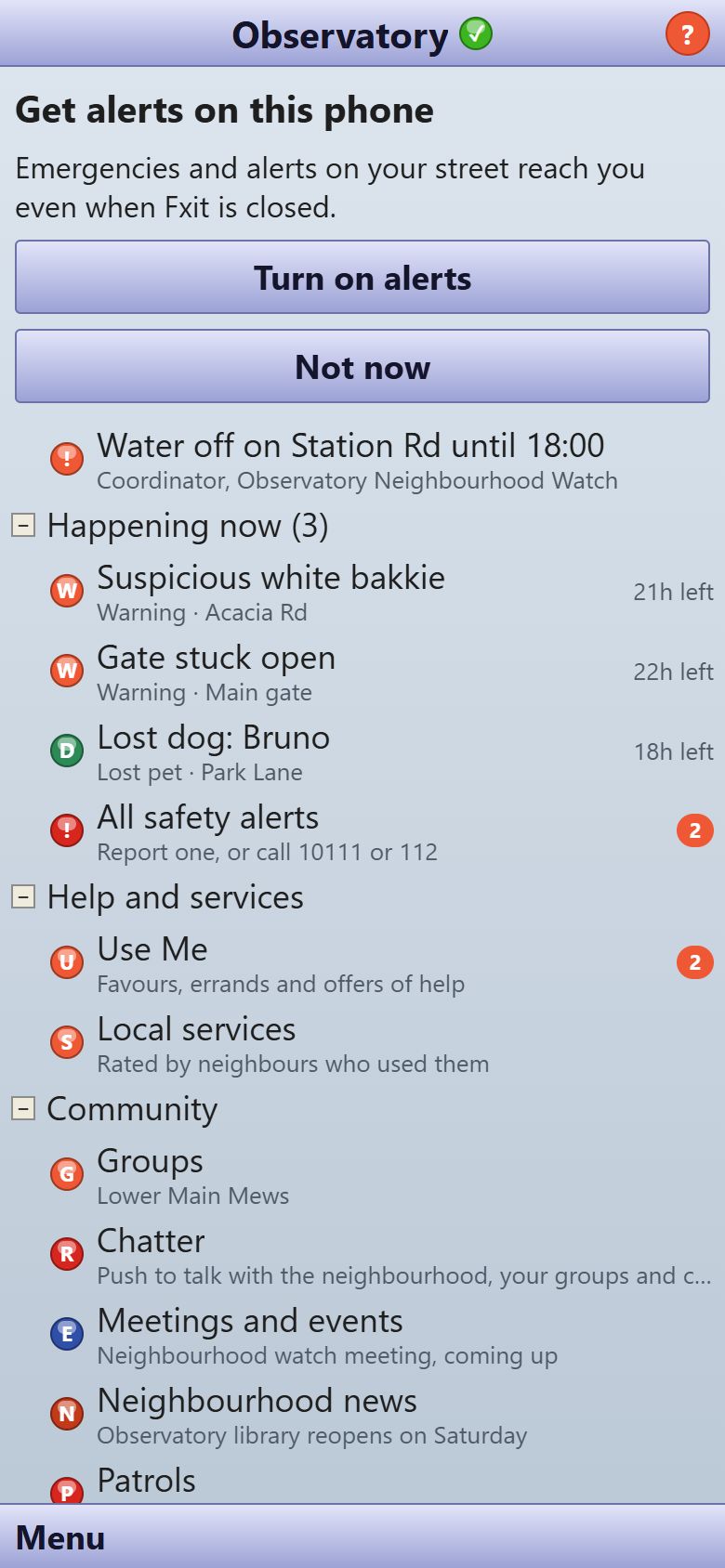
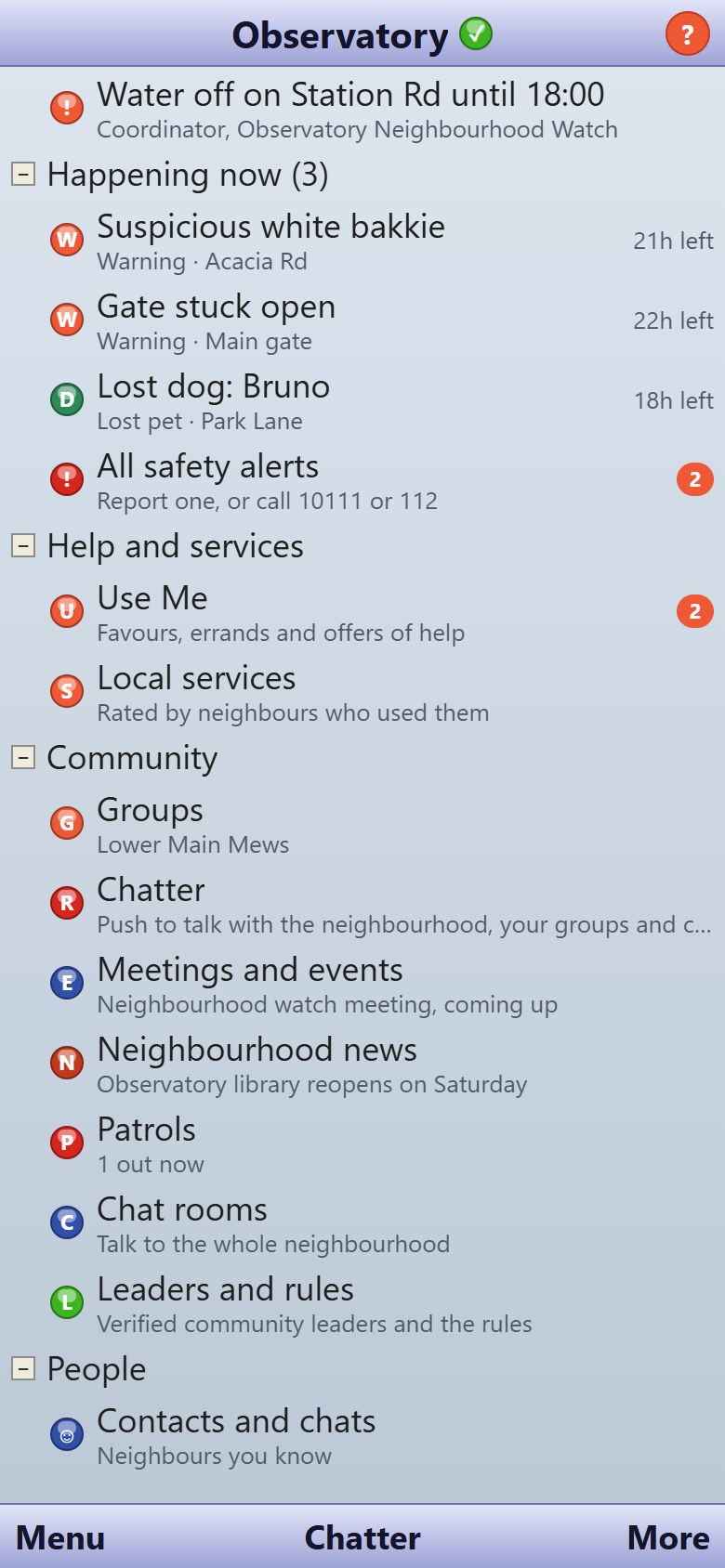
The home screen
- Notices from leaders sit at the top. Tap one to read it.
- Happening now shows the latest alerts. Tap one to open it.
- Tap a section’s heading, such as Community, to fold it away. It shows a + when folded; tap again to open it.
- Along the bottom: Menu on the left for Report an alert, Ask for or offer help and Contacts and chats. Chatter in the middle, on every screen. More on the right for My profile, How Fxit works, Privacy and Log out.
Anything you can tap starts with a coloured bubble, like the orange + on Report an alert.
Tips on every screen
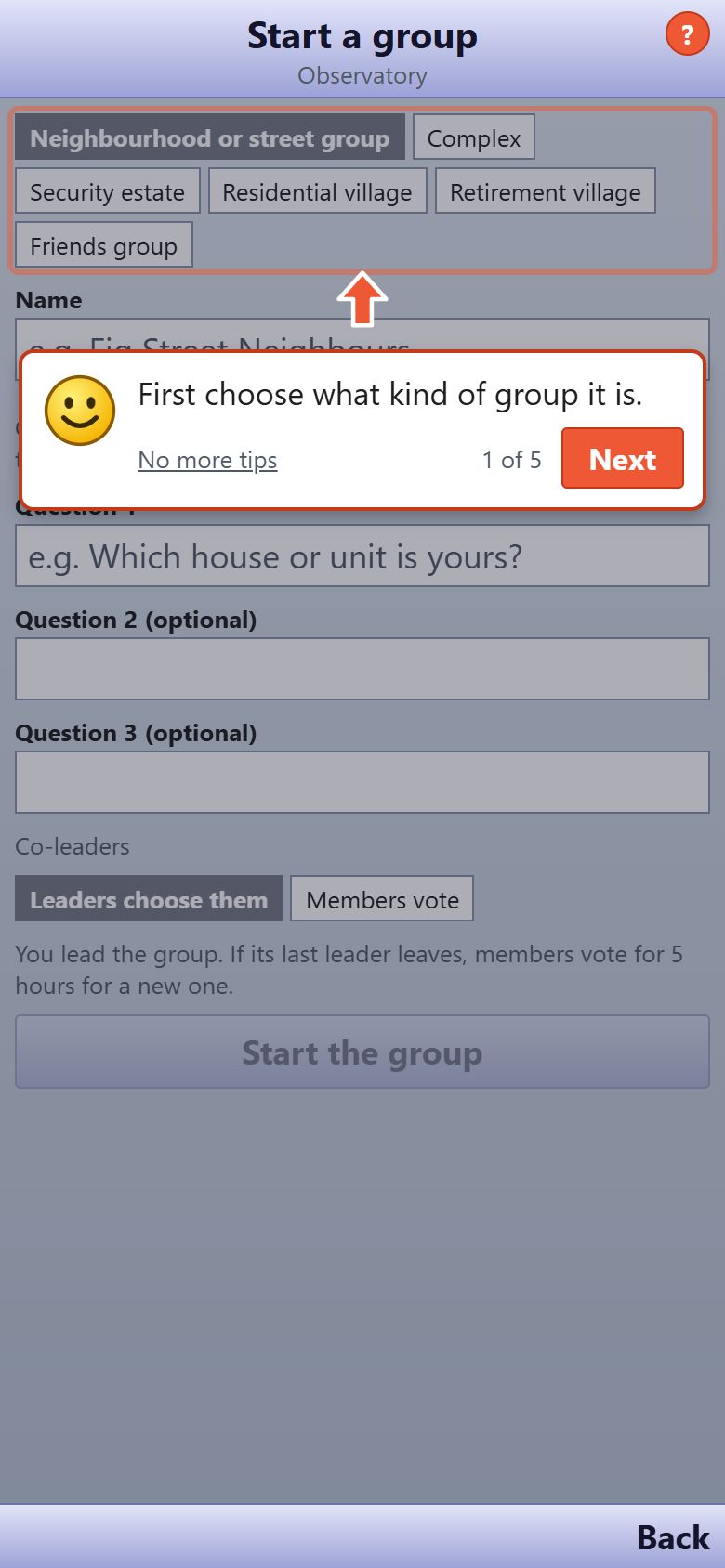
- The first time you open a screen, a smiley pops up and points at what to do there, with a line or two on how it works.
- Tap Next for the next tip, or Got it on the last one. Each screen shows its tips once.
- Tap the orange ? at the top of any screen to see its tips again.
- Know your way around? Tap No more tips and they stop popping up. The ? still works.
Safety alerts
Report an alert
- In danger right now? Call 10111 or 112 first. Both are one tap away on the alerts screen.
- Tap Safety alerts on the home screen, then Report an alert.
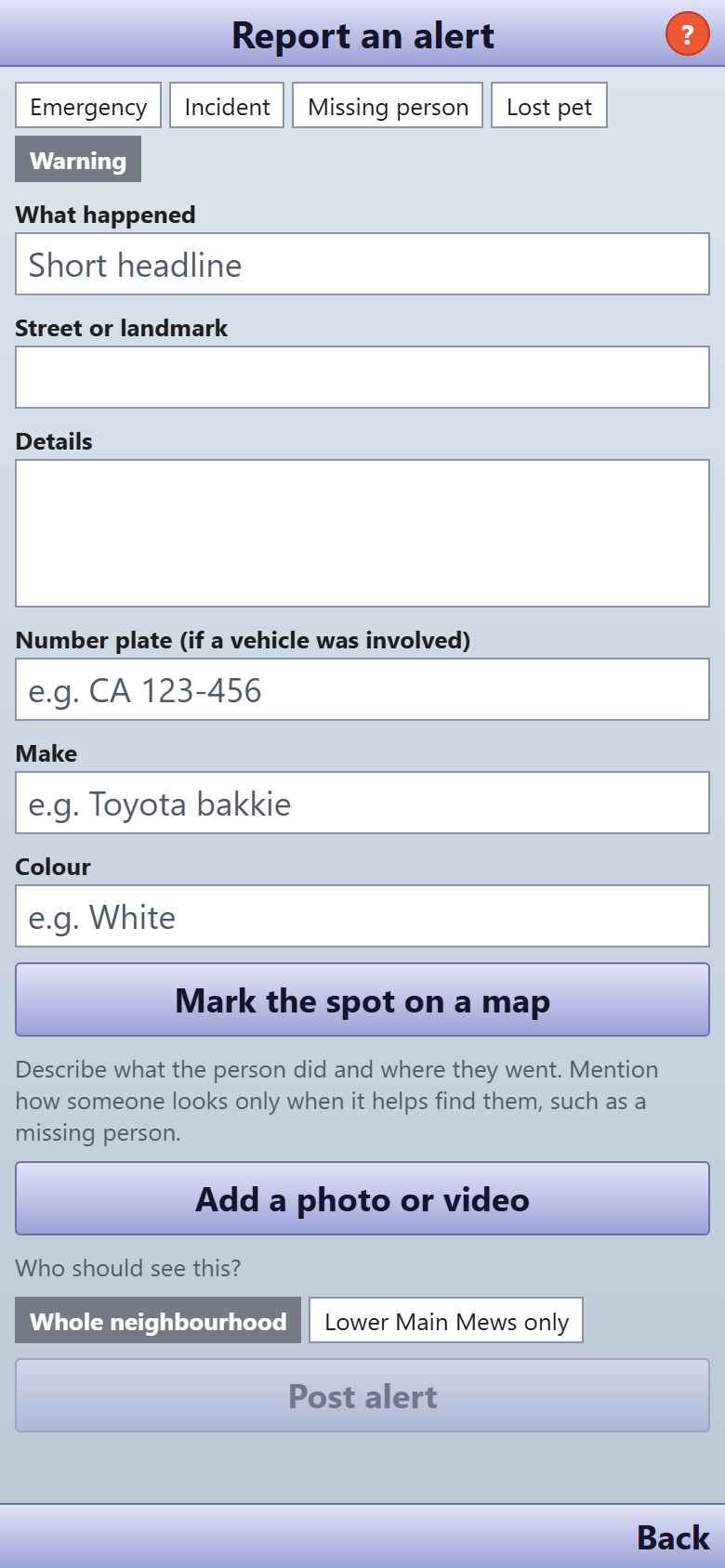
- Choose the kind: emergency, incident, missing person, lost pet or warning.
- Fill in What happened, Street or landmark and Details. For a car, add the number plate, make and colour.
- Tap Mark the spot on a map to drop a pin, and Add a photo or video if you have one.
- Choose who should see it, then tap Post alert. Every neighbour gets a notification.
Find an alert
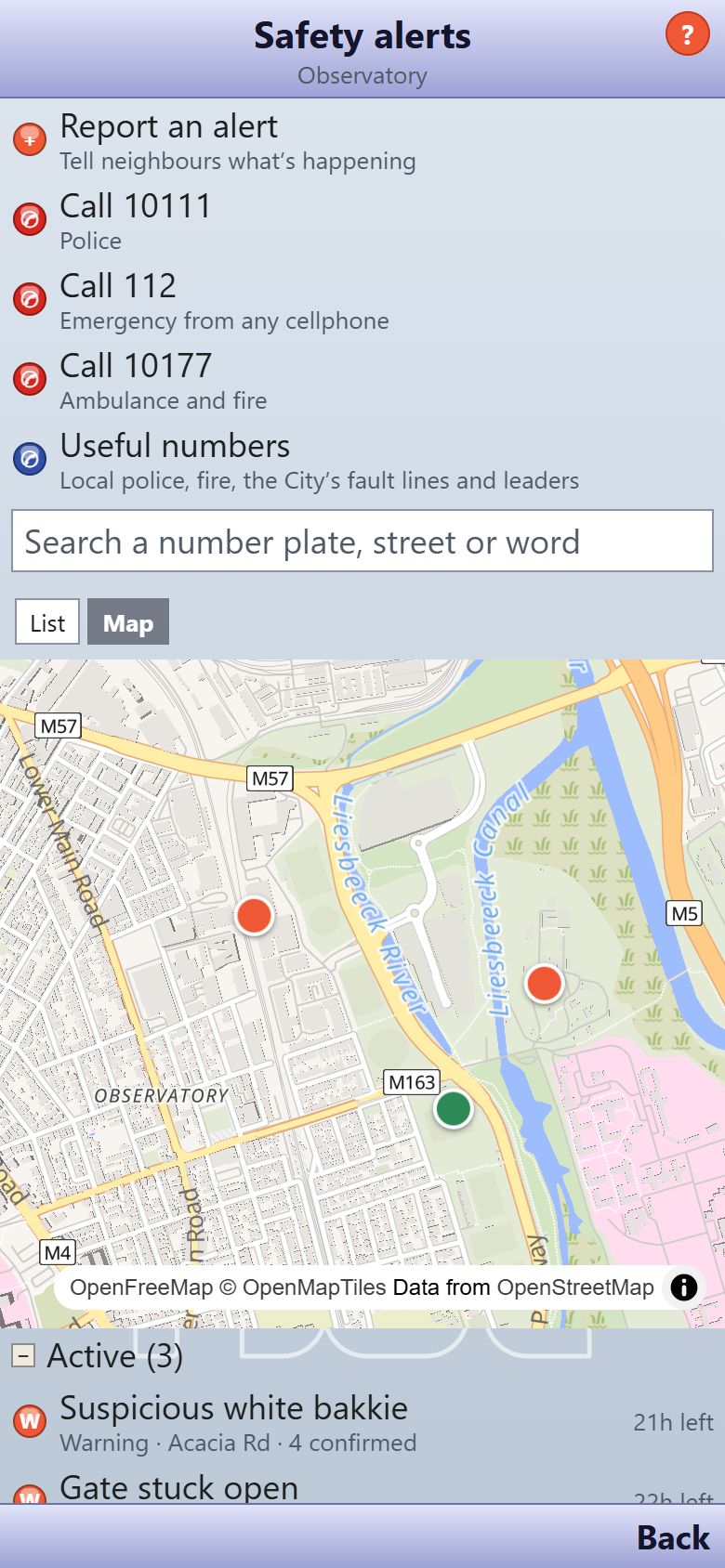
- On Safety alerts, type a number plate, street or word in the search box.
- Tap Map to see alerts as pins, and tap a pin to open the alert. Tap List to go back.
Help with an alert
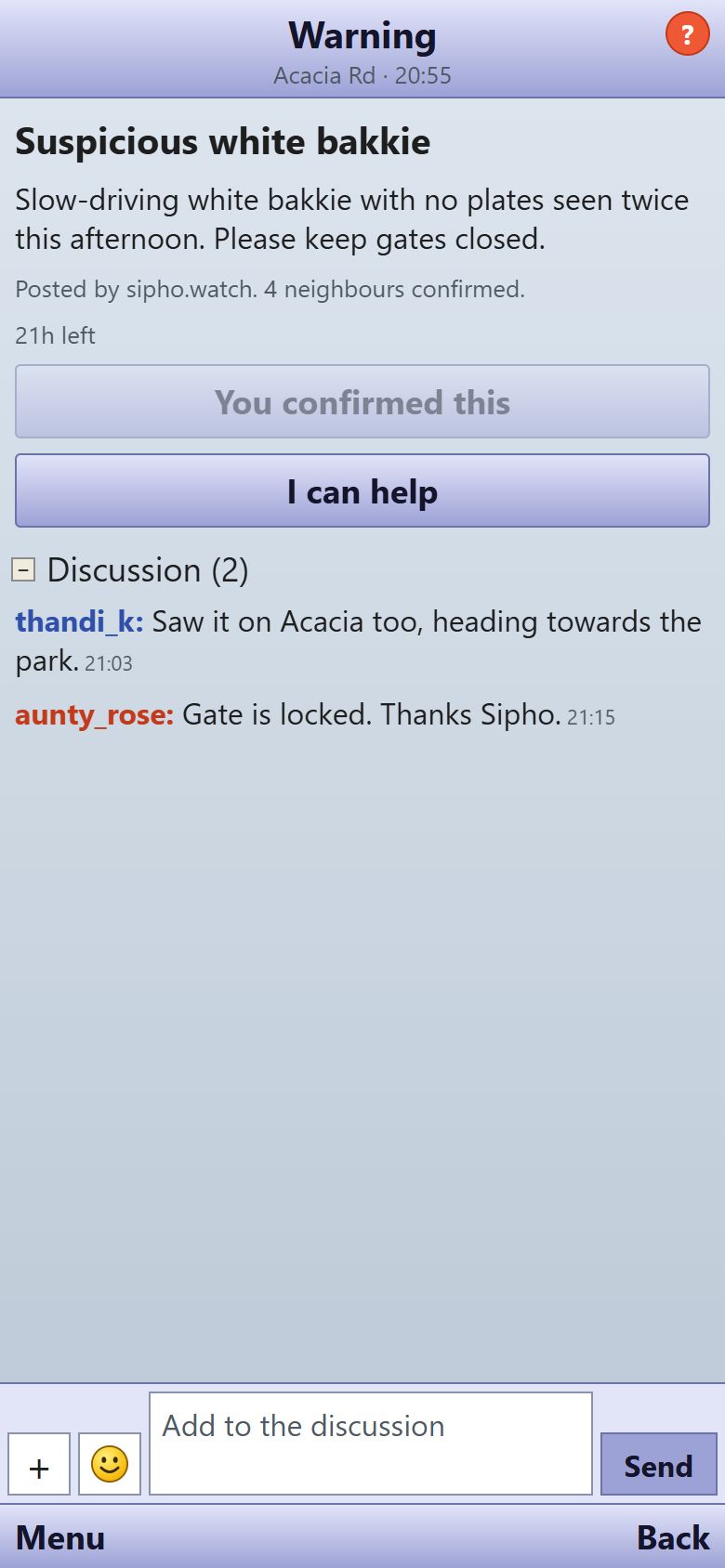
- Open the alert. Tap I saw this too to confirm it, or I can help to open a chat with the person who posted.
- Add what you know, or a photo, in the Discussion at the bottom.
- If you posted it, tap Mark resolved and say how it ended, or Keep for 24 hours from now to keep it up longer.
Alerts, their discussions and photos disappear 24 hours after they are posted.
Useful numbers
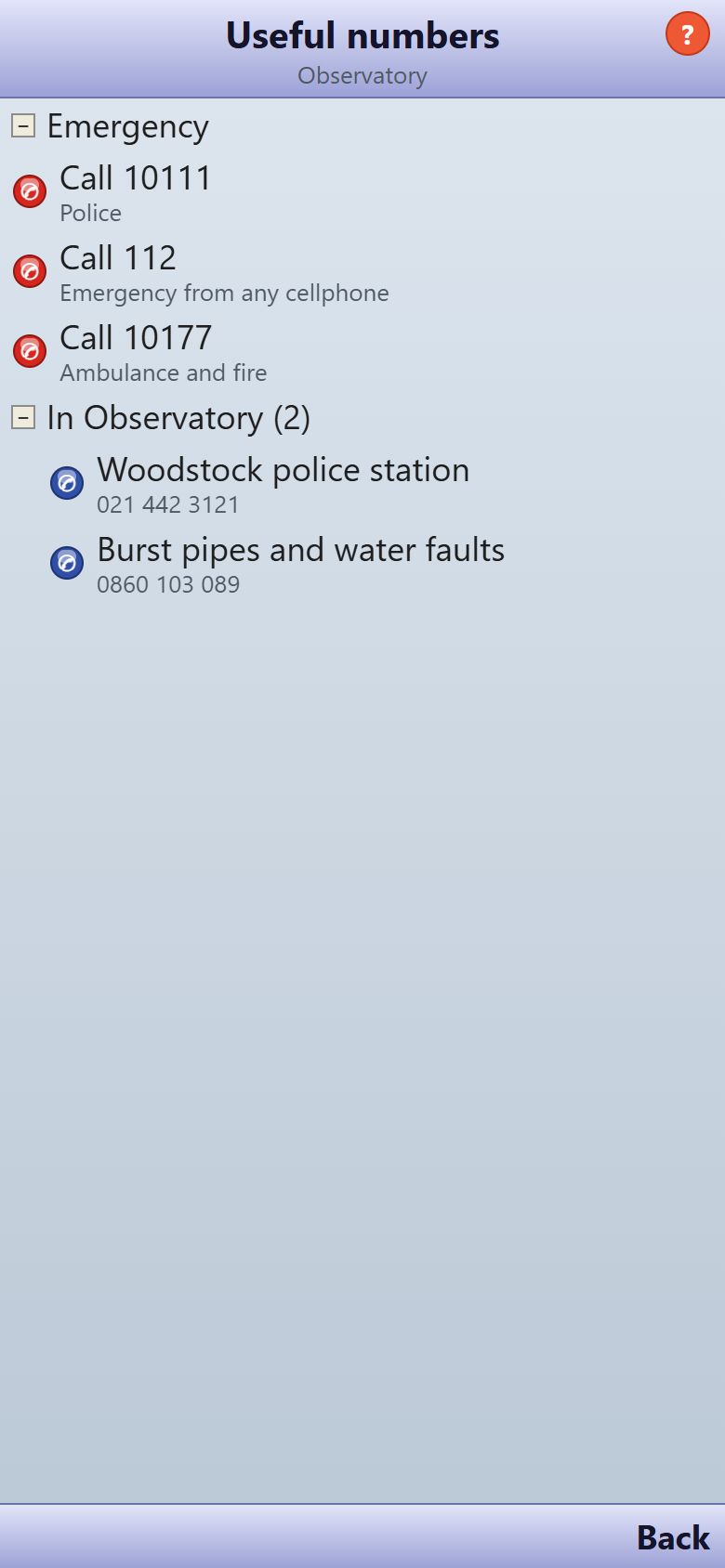
- On Safety alerts, tap Useful numbers.
- Tap any number to call it: national emergency numbers, local numbers leaders have added, and leaders who share a contact number.
- Leaders add a number with What it’s for and Number, then Add it.
Use Me
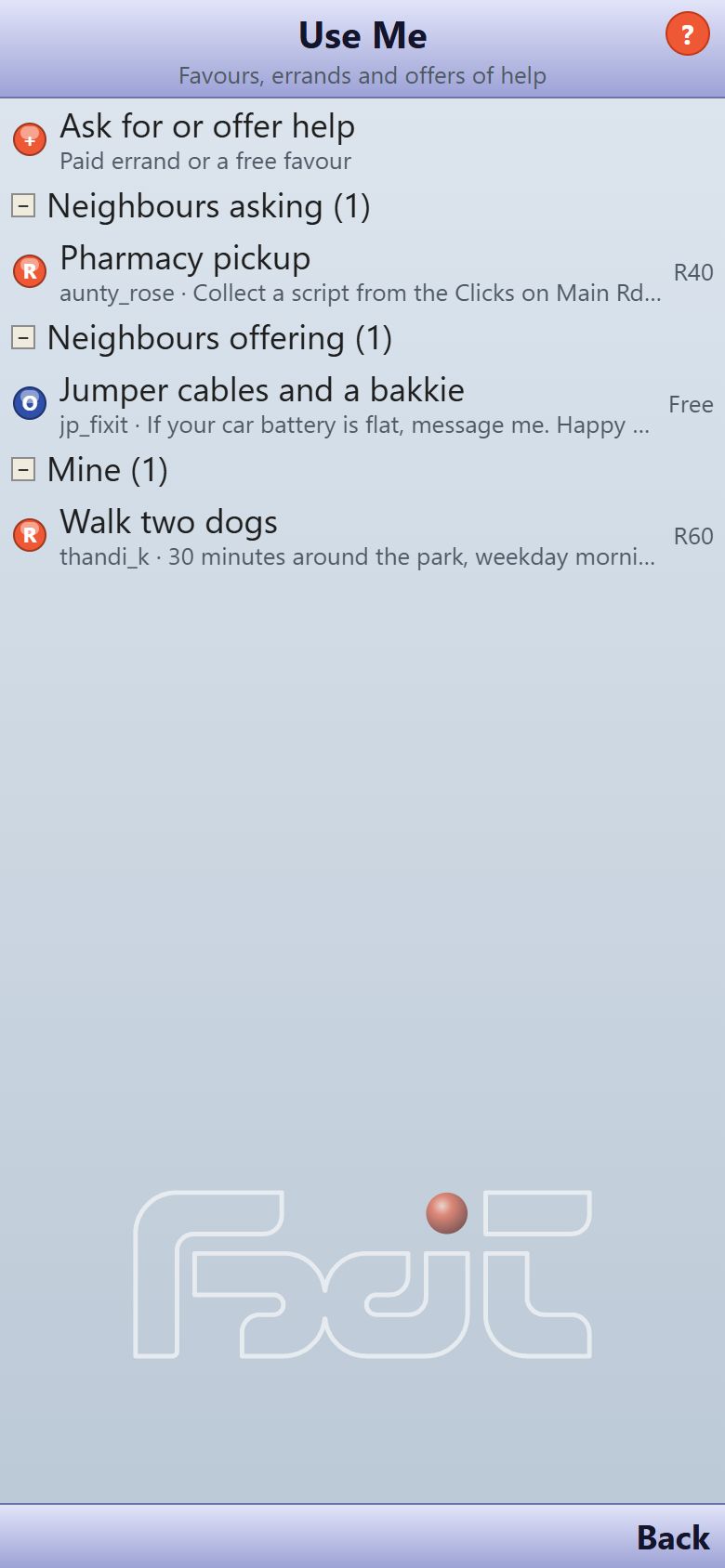
- Tap Use Me on the home screen. The first time, read the points and tap I understand.
- Tap Ask for or offer help, choose I need help or I can help, add the details and an amount if it’s paid, then tap Post.
- To help someone, open their request and tap I can do this, then message them to arrange it.
- When it’s done, the person who asked taps Mark done and rates the help.
We don’t handle money. Payment is between you, at your own risk. Be vigilant: scammers are real.
Local services
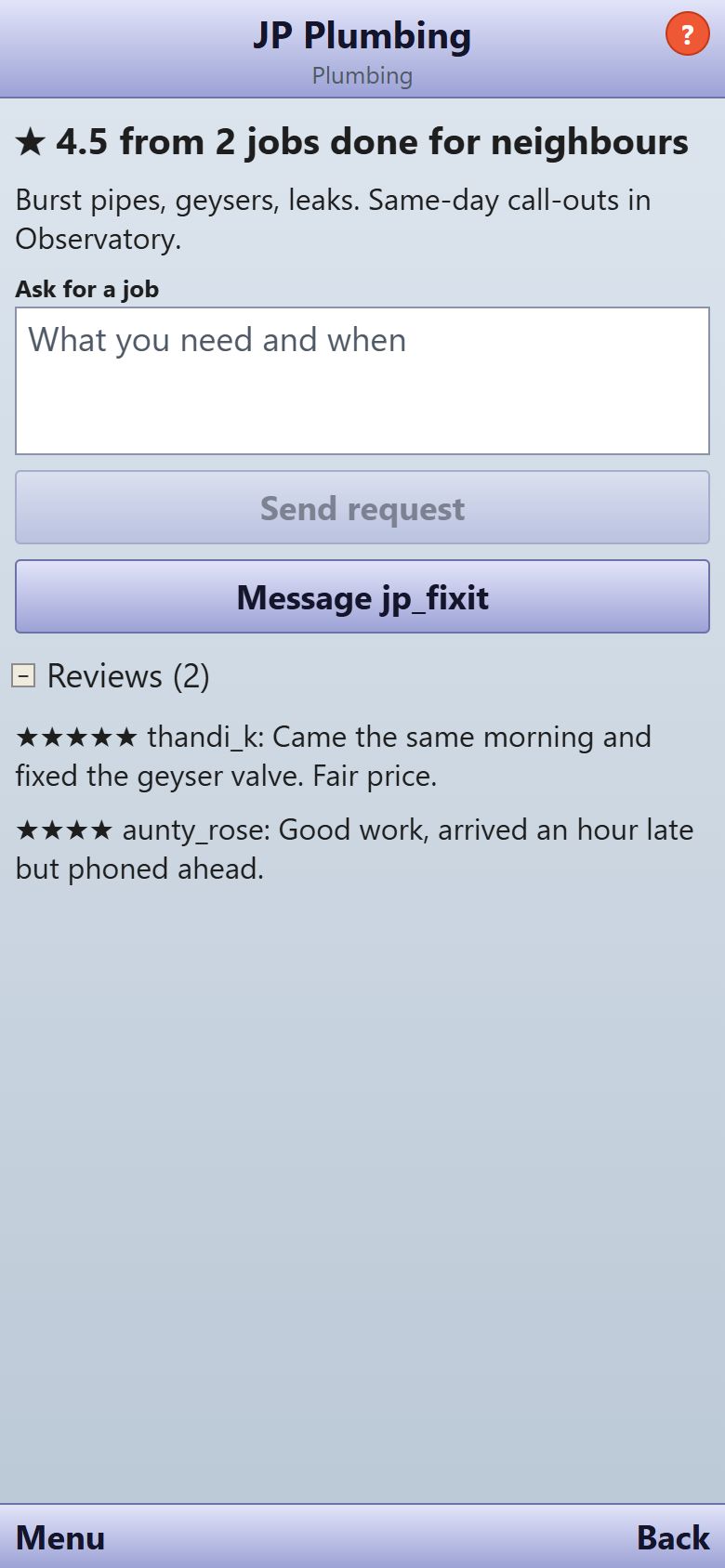
- Tap Local services on the home screen to see tradespeople and helpers, grouped by trade and rated by neighbours.
- Open a listing, describe the work in Ask for a job and tap Send request.
- When the work is done, tap Mark done and rate and add A few words for neighbours.
- To list your own service, tap Offer your service, fill in Trade, Name neighbours will see and What you offer, then List my service.
Groups
Join a group
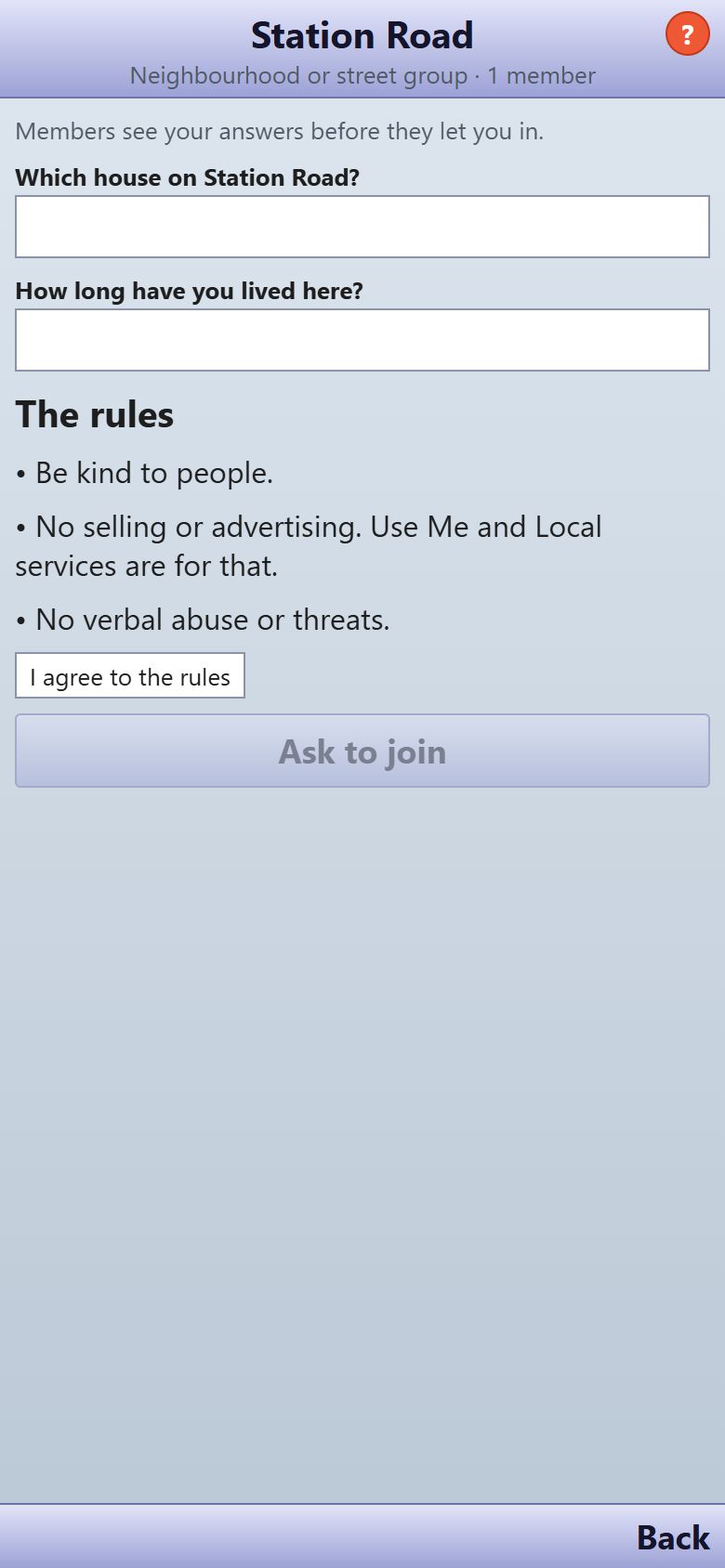
- Tap Groups on the home screen and choose one under Other groups.
- Answer its questions, tick I agree to the rules and tap Ask to join. A member lets you in.
- With an invite link or a QR code from a member, tap Join and you’re in straight away.
Start a group
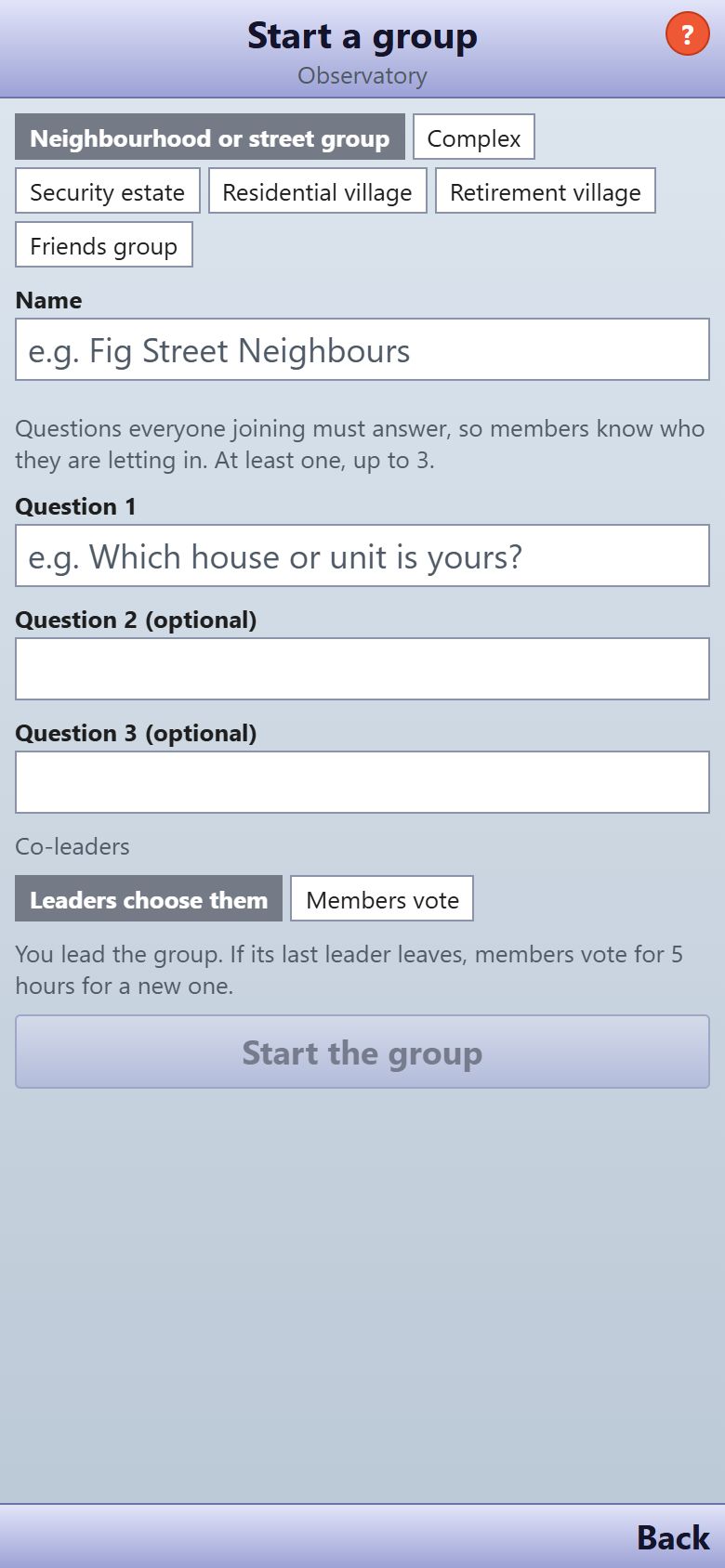
- On Groups, tap Start a group.
- Choose the kind of group: a neighbourhood or street group, a complex, a security estate, a residential village, a retirement village or a friends group. Then give it a Name, write the questions people answer to join, and choose how co-leaders are picked.
- Tap Start the group. You lead it, and its alerts, chat, notices and patrols stay inside it.
Inside a group
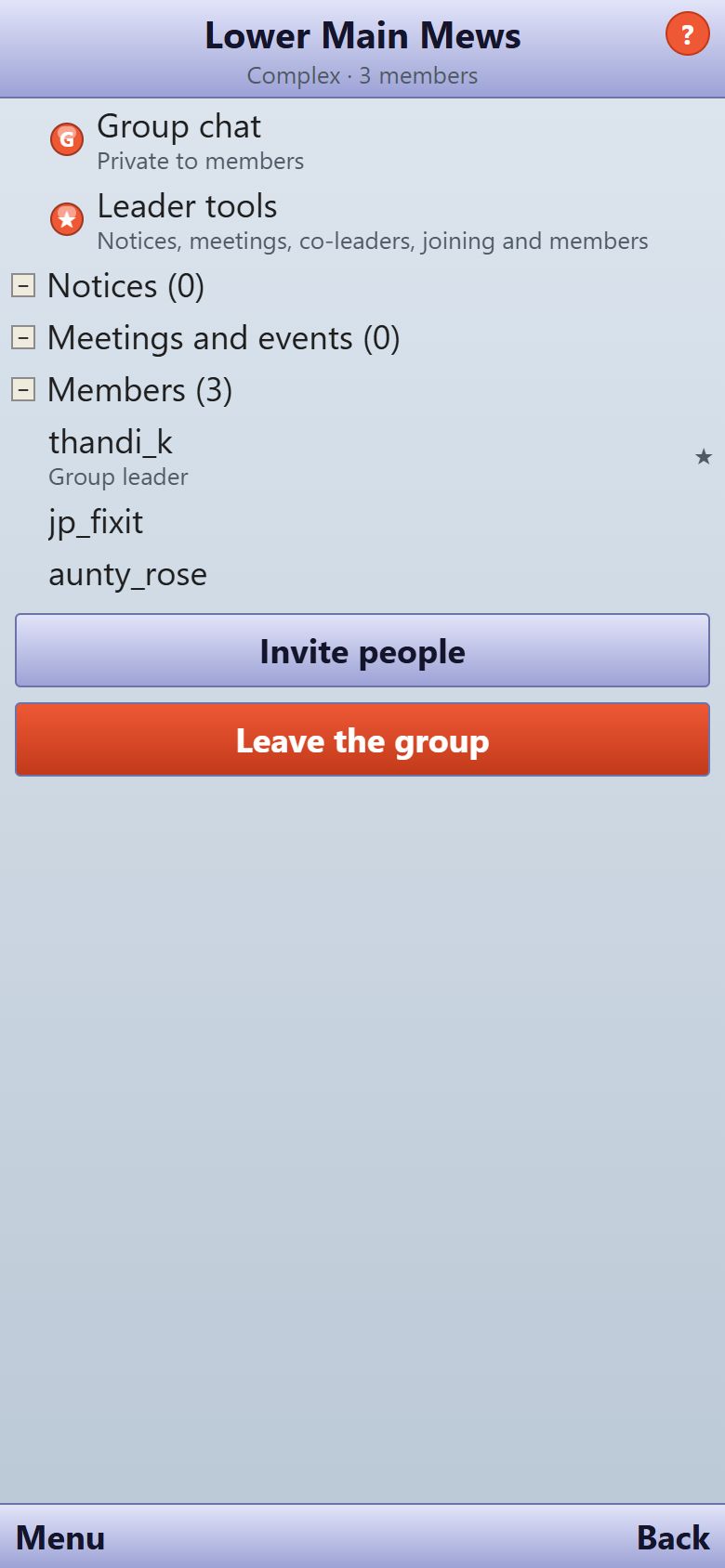
- Open your group to see its notices, meetings, members and Group chat.
- Tap Invite people to share the invite link or print a Join sign to print with a QR code for the gate.
- Let people in from Asking to join with Let … in, or Turn away.
Leader tools
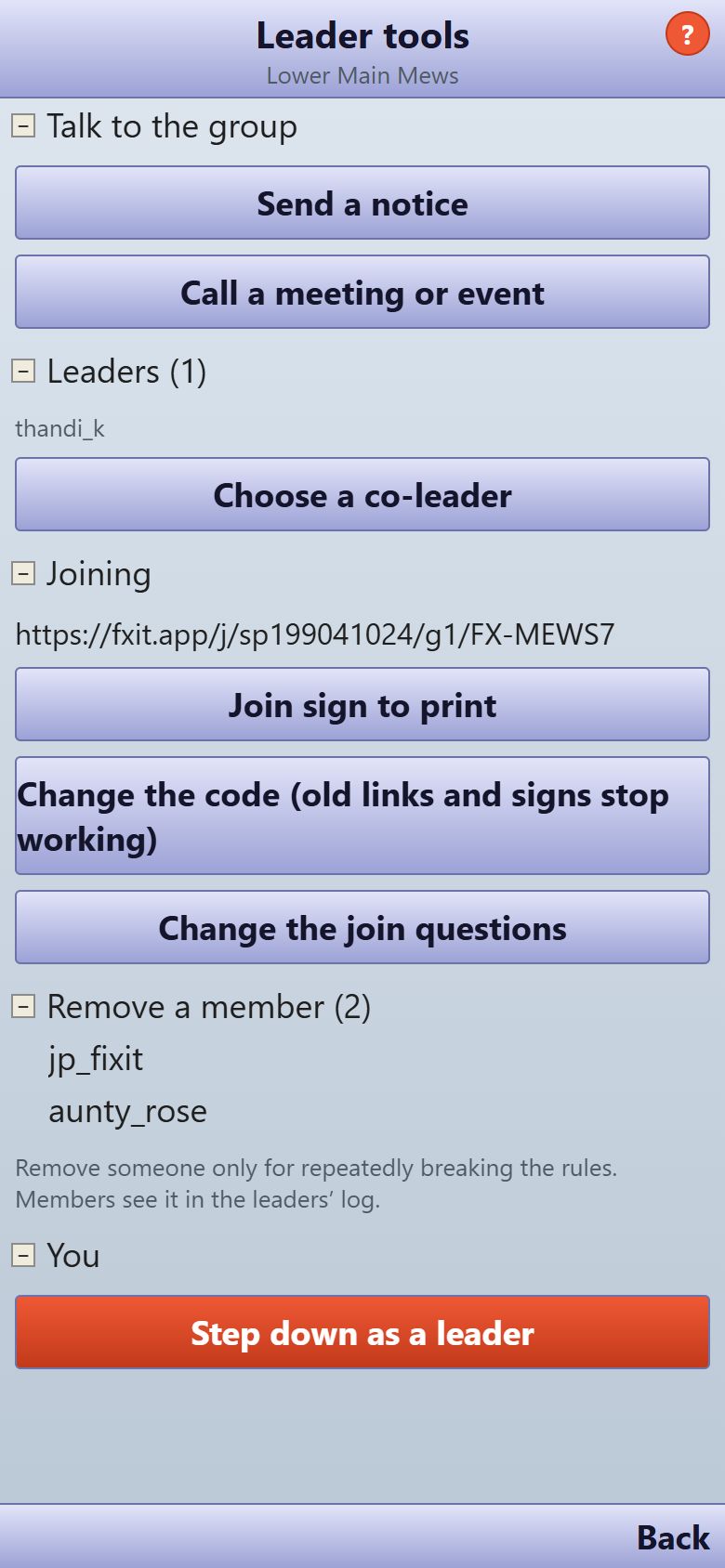
- Group leaders tap Leader tools in their group.
- From there: Send a notice, Call a meeting or event, Choose a co-leader, Change the join questions, Change the code and Remove a member.
- Changing the code stops old links and signs from working.
Chatter
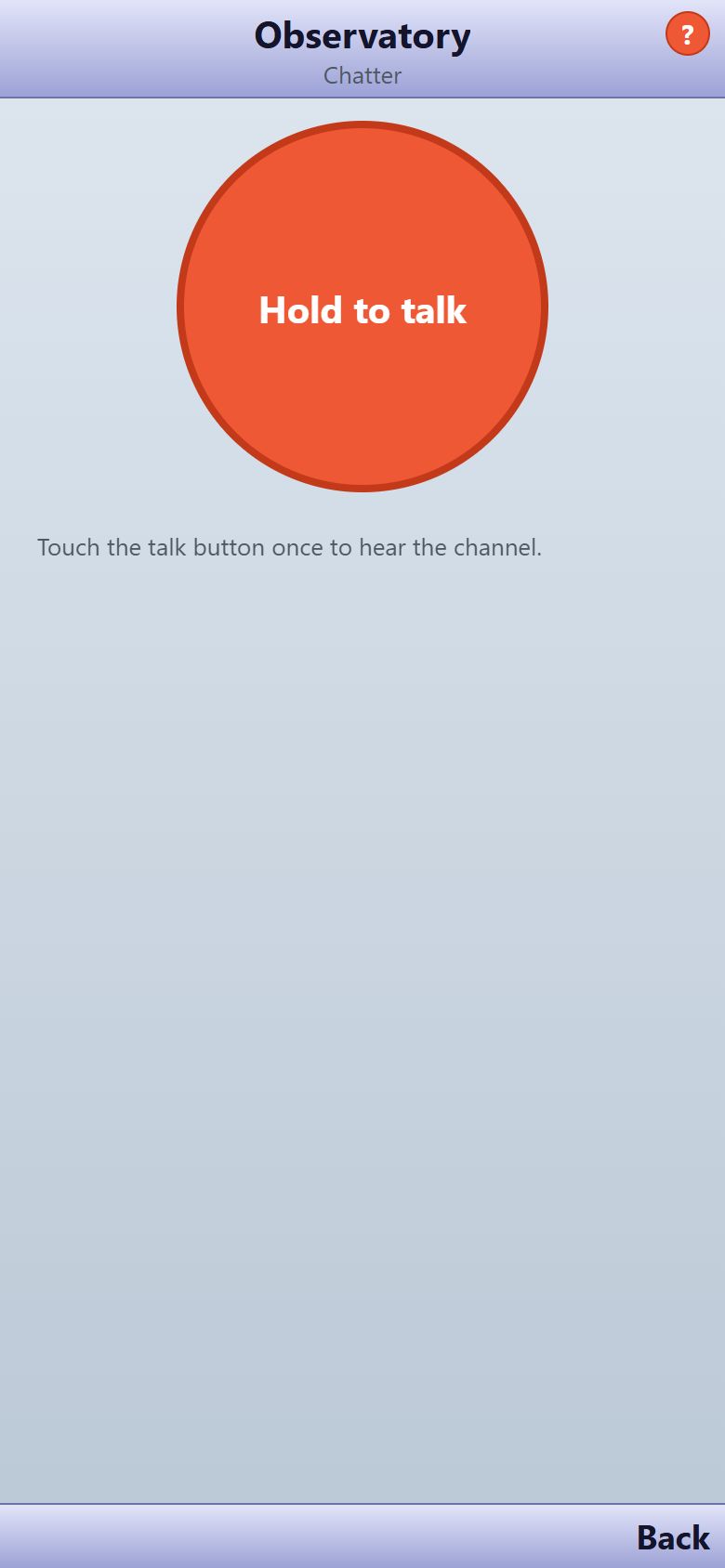
- Tap Chatter on the home screen and choose a channel: the whole neighbourhood, one of your groups or a contact.
- Hold the big Hold to talk button, speak, and let go to send.
- Everyone on the channel hears it once, live, like a radio.
- Leaders can tap Listen back over the last 24 hours.
The first time, allow Fxit to use your microphone.
Meetings and events
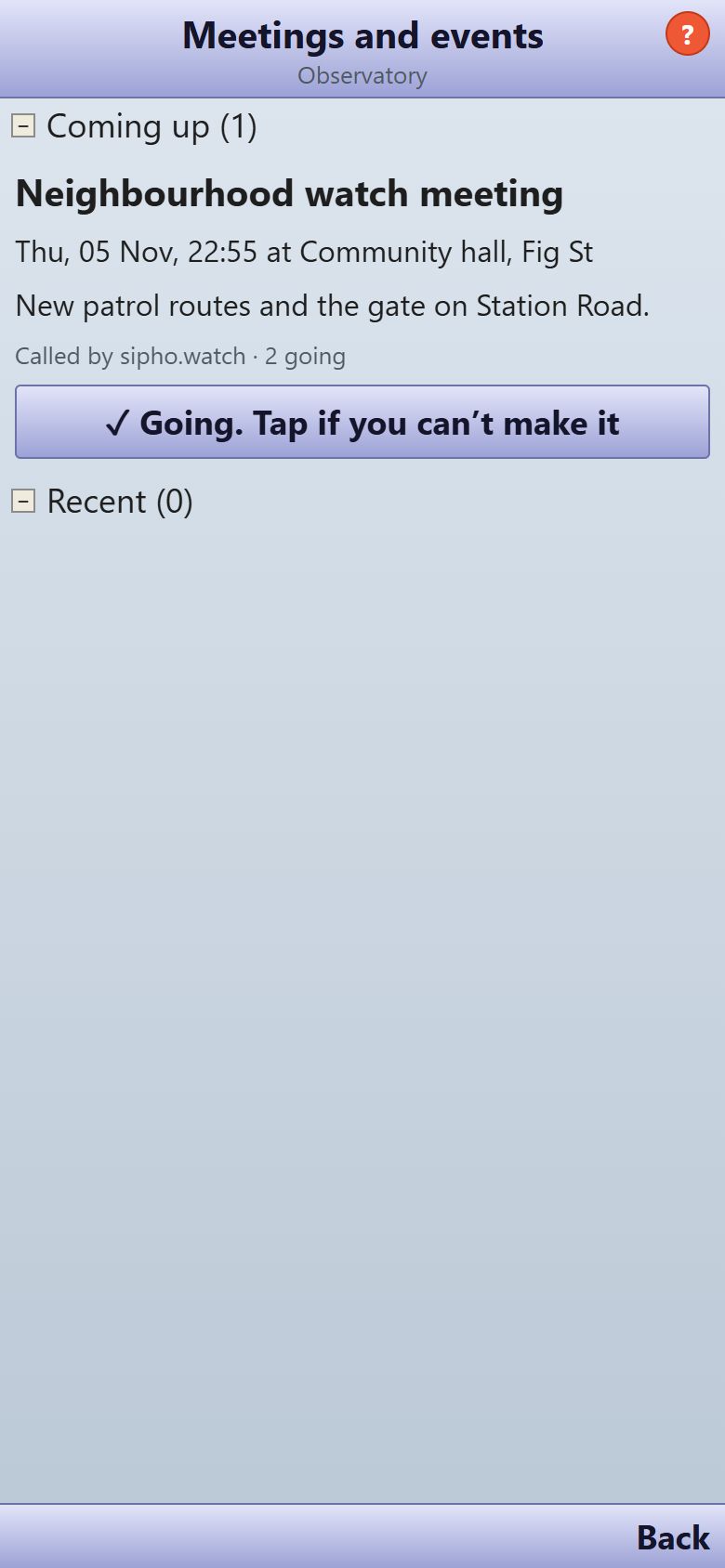
- Tap Meetings and events on the home screen to see what’s Coming up.
- Tap I’m going on a meeting so the leader knows who is coming.
- Leaders tap Call a meeting or event, and afterwards Share the outcome so everyone knows What was decided.
Neighbourhood news
Read and comment
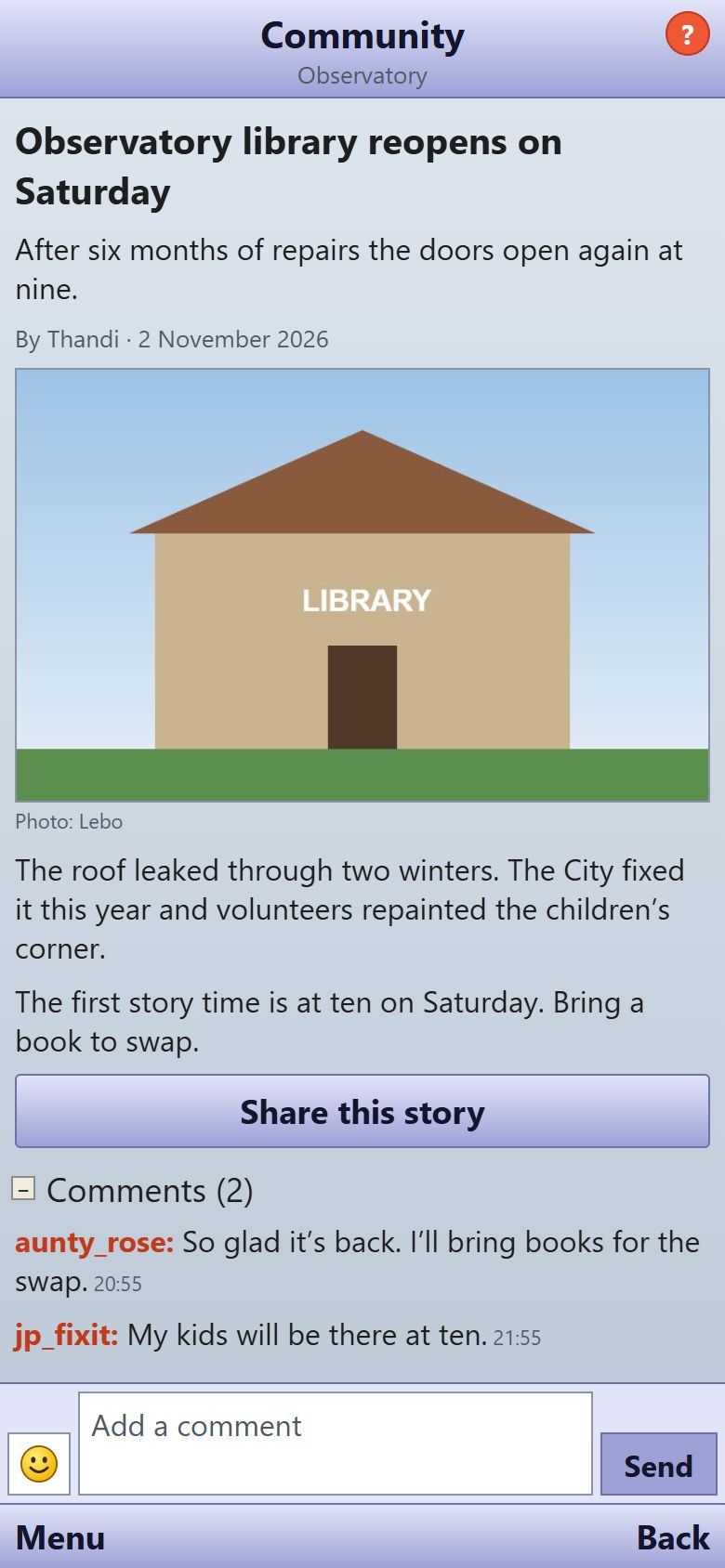
- Tap Neighbourhood news on the home screen and open a story.
- Add a comment at the bottom. Only neighbours on Fxit see comments.
- Tap Share this story to send the link to anyone. Stories can be read without the app.
The daily story
Nobody needs to write the news. Each morning Fxit writes a short story for each neighbourhood from what neighbours shared there the day before: alerts and how they ended, lost pets, favours, notices and what is coming up. Group posts, chats and anything hidden never go in. A quiet day gets no story.
Patrols
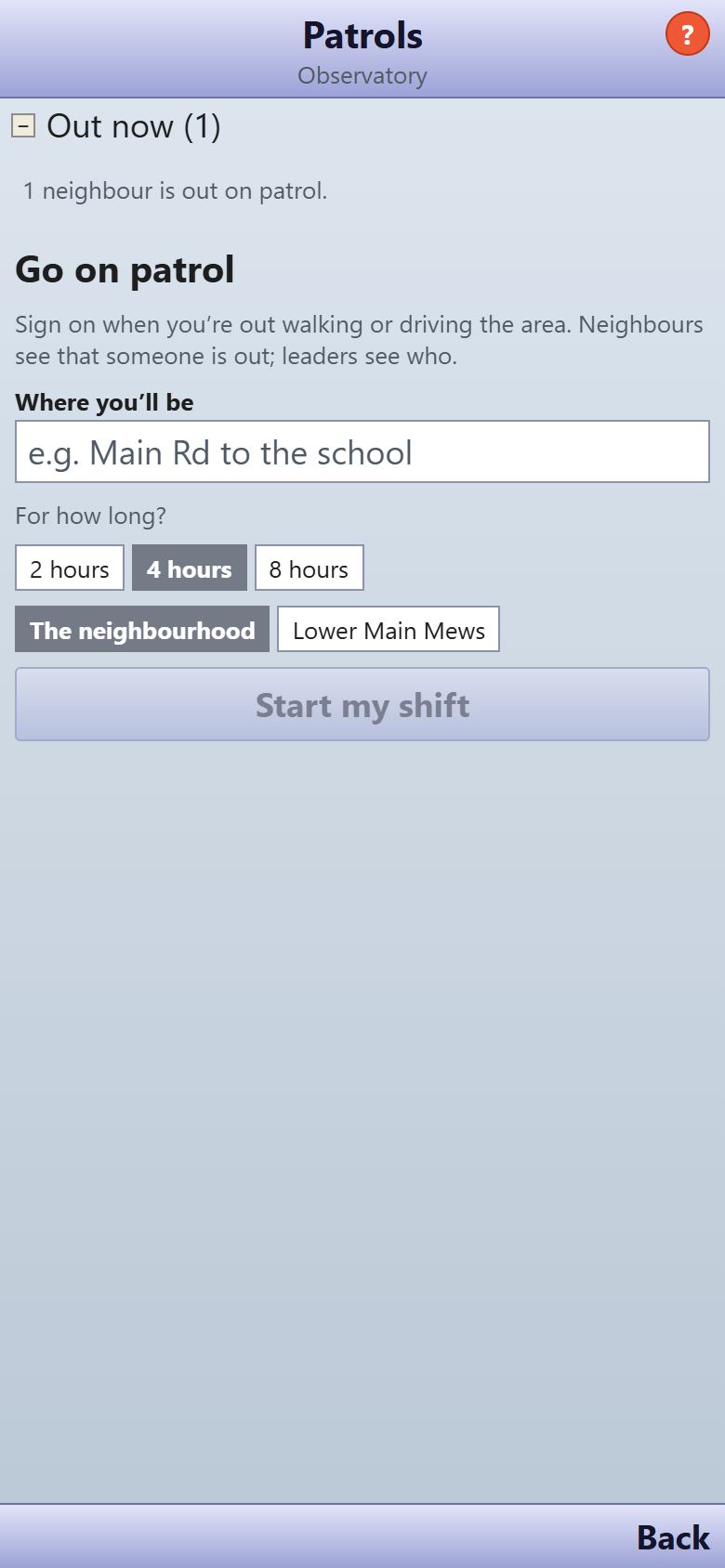
- Tap Patrols on the home screen to see who is Out now.
- Going out? Fill in Where you’ll be, choose how long, and tap Start my shift.
- While you’re on patrol, every new alert reaches you as urgent, even at night. Tap End my shift when you’re back.
Patrols show once two neighbours have vouched for you.
Chat rooms
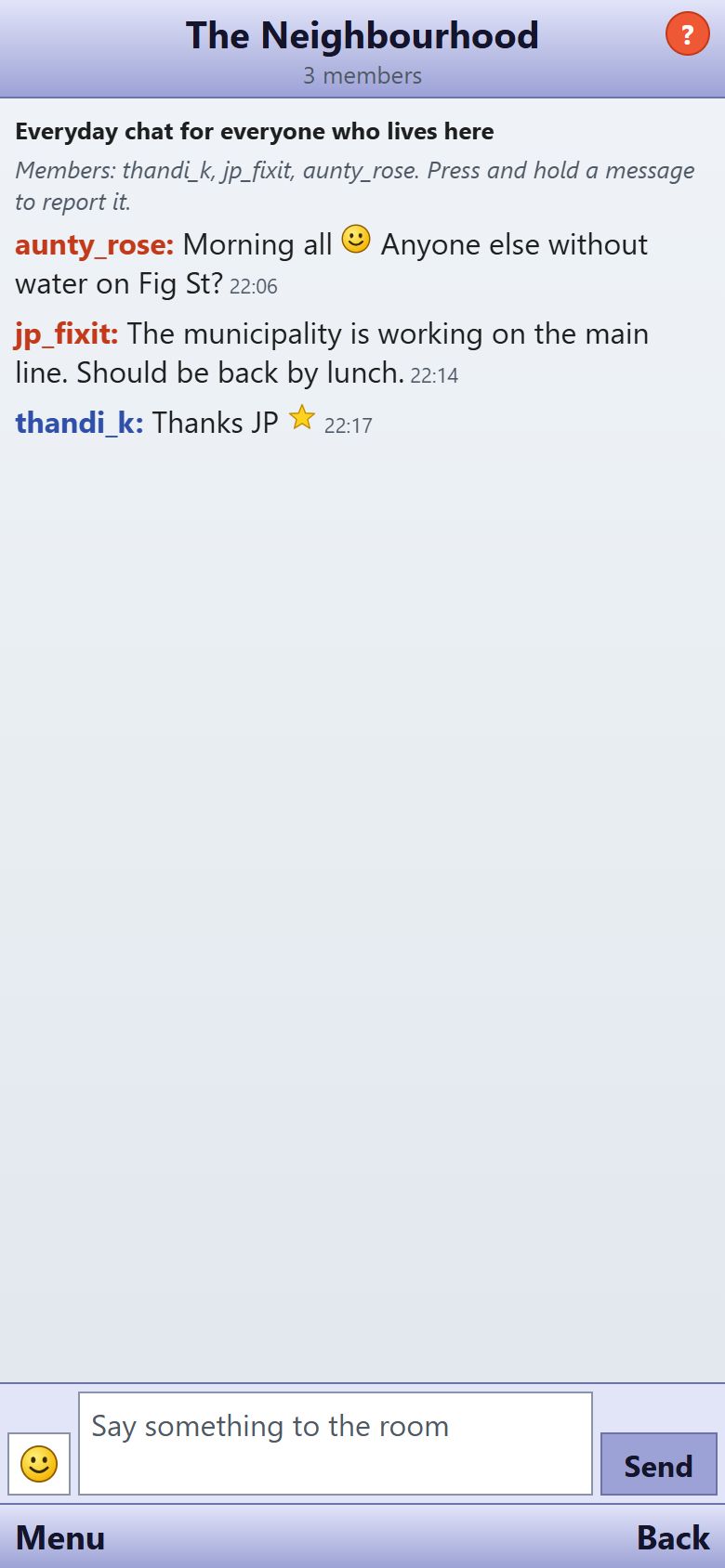
- Tap Chat rooms on the home screen.
- The Neighbourhood room is for everyone who lives here. Each group has its own private room.
- Open a room and type in Say something to the room. Use the Menu to Leave room.
Leaders and rules
- Tap Leaders and rules on the home screen to see verified community leaders, responders, open votes and the Leaders’ log of everything leaders have done.
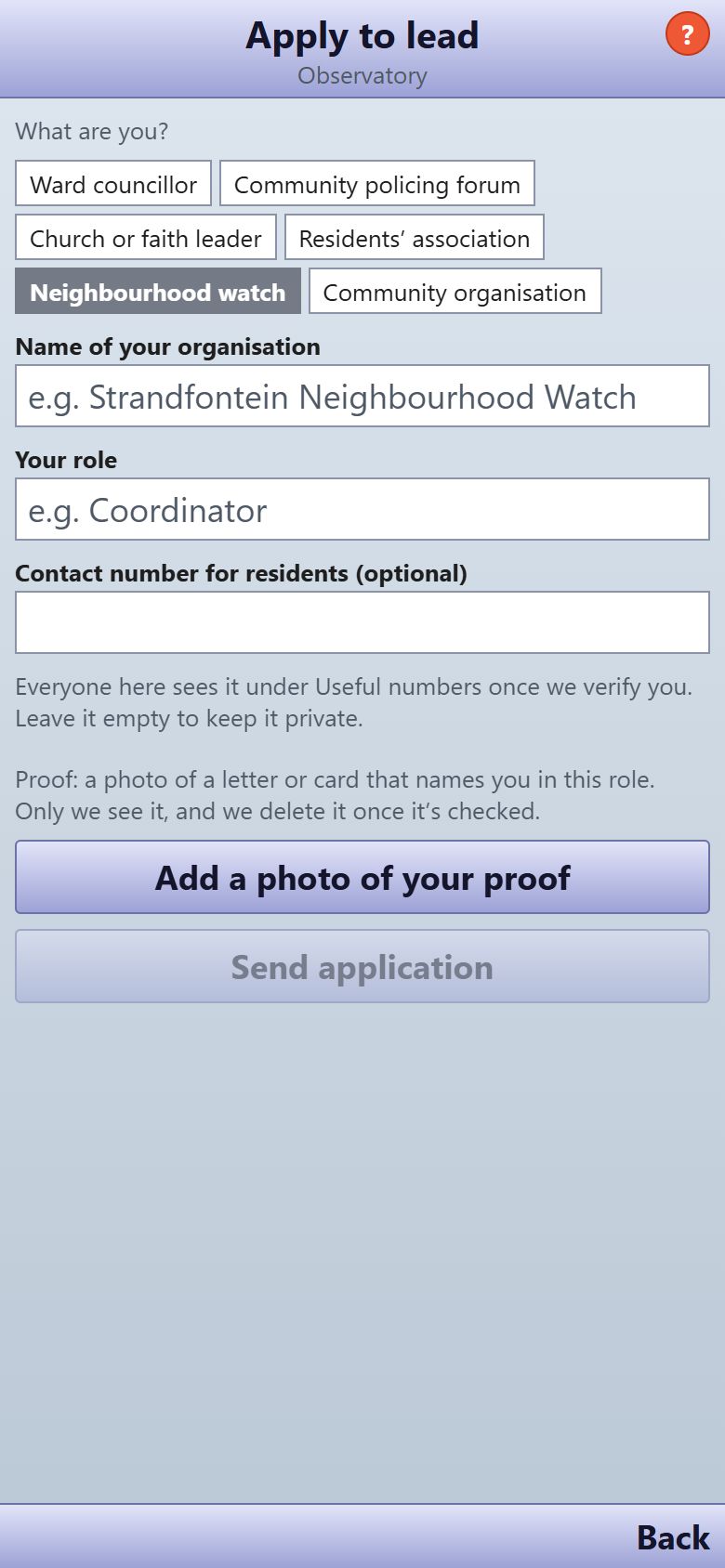
- Ward councillors, CPF members, faith leaders, residents’ associations, neighbourhood watches and community organisations tap Apply to lead.
- Fill in your organisation and Your role, Add a photo of your proof, and tap Send application. We check it and verify you.
Send a notice
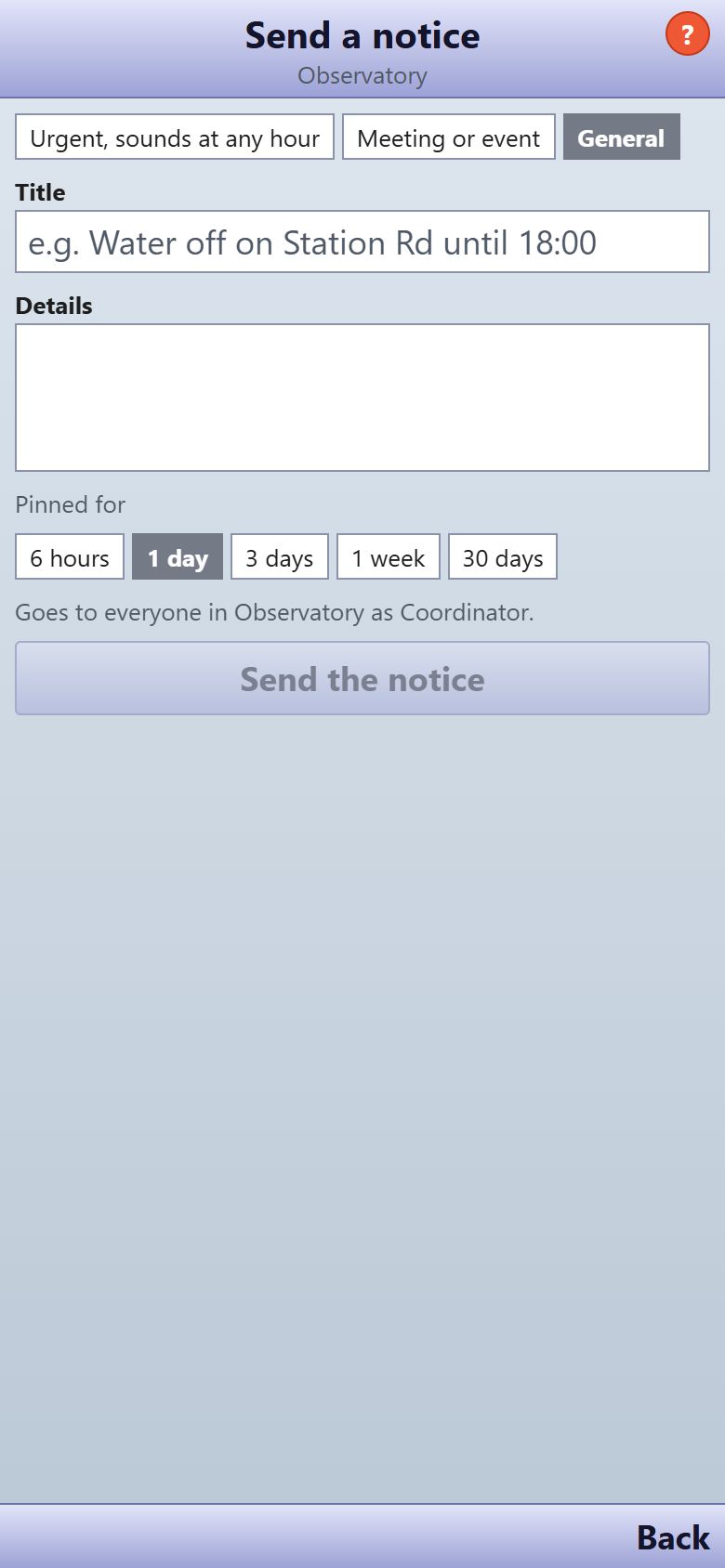
- Verified leaders tap Send a notice on Leaders and rules.
- Choose urgent, meeting or general, write the title and details, and choose how long it stays pinned.
- Tap Send the notice. It goes to everyone in the neighbourhood. Keep urgent notices for real urgency: they sound at any hour.
Contacts and chats
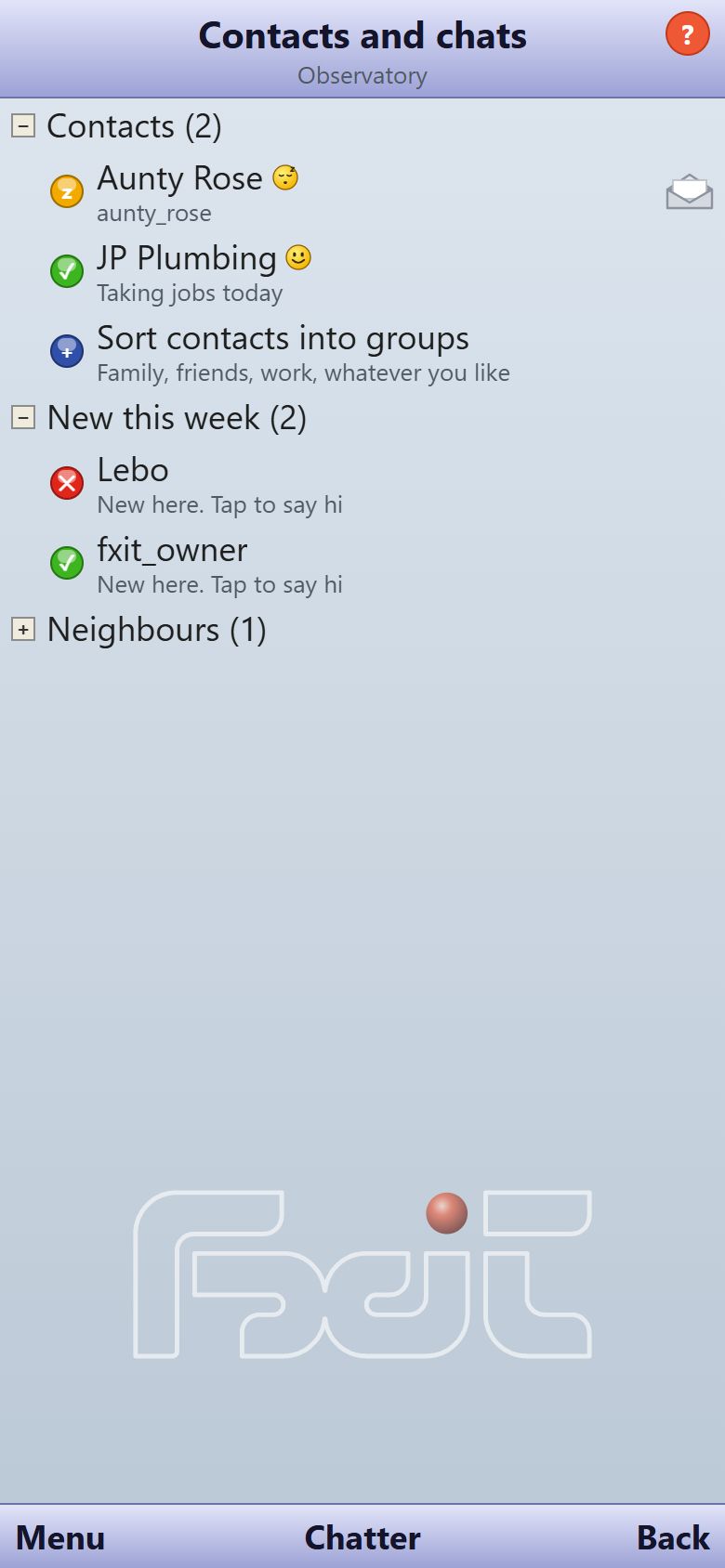
- Tap Contacts and chats on the home screen. Your Contacts, Chats and neighbours are listed here.
- A closed yellow envelope next to someone means a new message. An open grey envelope means you’ve read it all.
- Sort your contacts into your own groups, like Family, Friends or Braai crew: tap Menu, then Sort contacts into groups. Name a group, tap Make the group, then choose a group for each contact. Each group gets its own heading. Only you see them.
- Tap a neighbour, add a line in Say who you are, and tap Send request. You can chat once they accept.
- Use the Menu for Find neighbours in my phone contacts. Only phone numbers are checked, and none are kept.
- Under Vouch for new neighbours, vouch only for people you know live here.
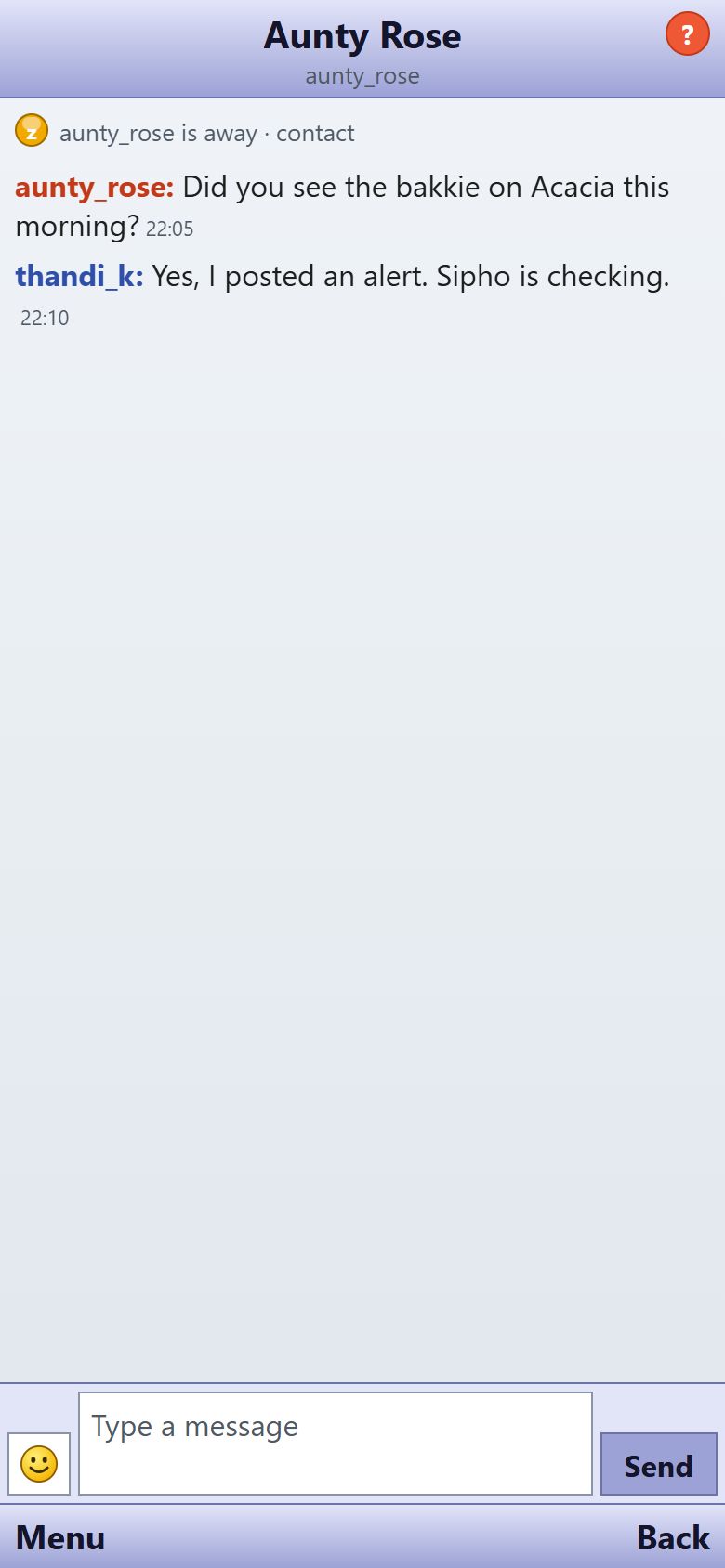
- In a chat, type in Type a message and send.
- Your chats are kept on your phone. We pass each message on and delete our copy once it reaches the other person’s phone. A message that isn’t collected within 7 days is deleted. If you delete Fxit or change phones, your chat history doesn’t come with you.
- The Menu has Close this chat, Remove contact and Block.
Responding
Police sectors, CPFs, armed response, ambulance and fire services can be invited by a neighbourhood’s leaders. A responder accepts the invite from their own Fxit account, and Responding then appears on their home screen. Emergencies and missing-person alerts reach them as urgent notifications, and they tap “on my way” and “arrived” so residents can see help coming.
Reporting a post
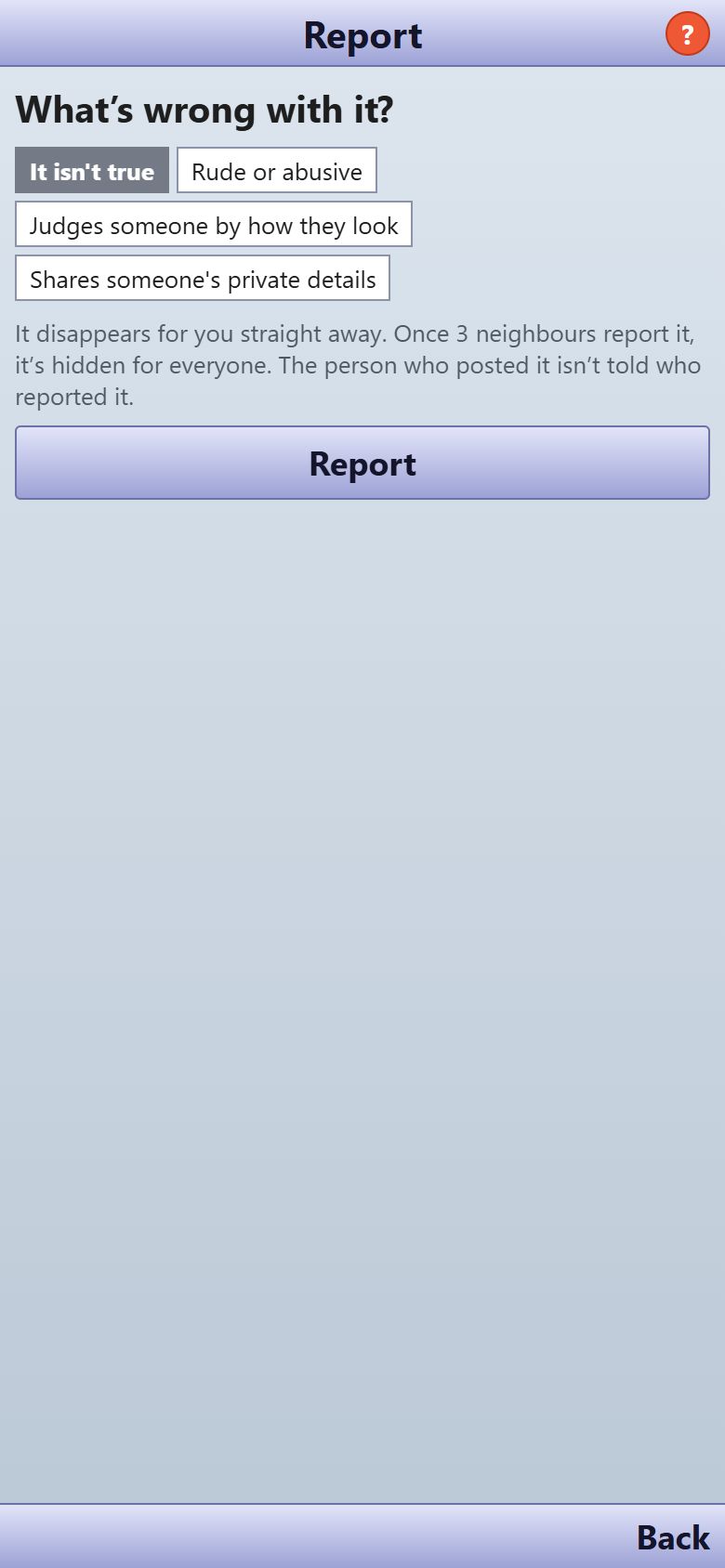
- Open the Menu on an alert or story and tap Report this alert or Report this story, or press and hold any message or comment.
- Choose what’s wrong with it and tap Report. It disappears for you straight away.
- Once three neighbours report it, it’s hidden for everyone. Leaders can hide it sooner, and that goes in the public log.
My profile and privacy
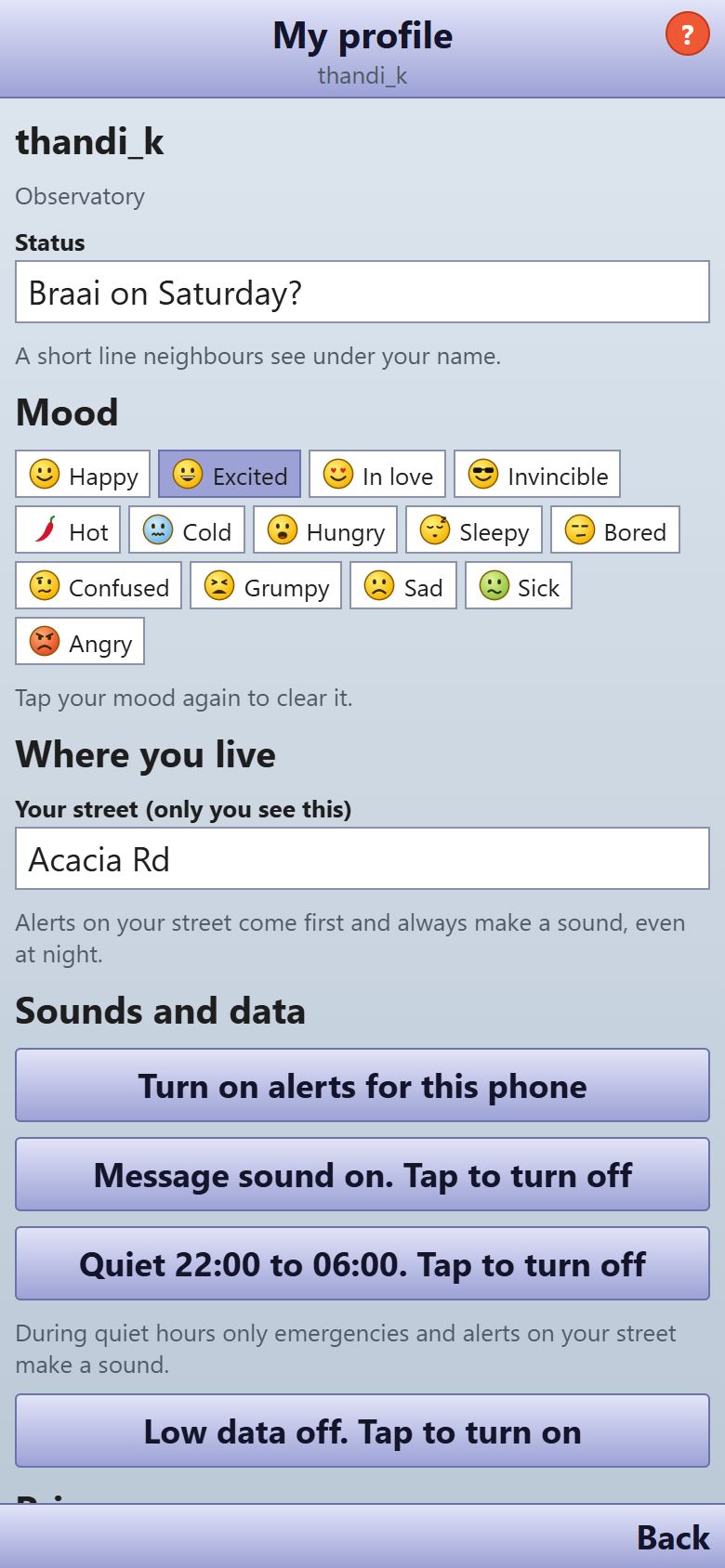
- On the home screen, tap More, then My profile.
- Set a Status and mood that neighbours see under your name.
- Enter Your street so alerts on your street always make a sound. Only you see it.
- Turn message sound, quiet hours and low data on or off.
- Tap What we keep, and deleting your account to read the privacy policy, the terms, or delete your account.
About Fxit · Terms of use · Privacy policy · Questions: llewellynwill1@gmail.com